



You can convert a 1080p video to 720p on a Windows PC by using a video converter application, setting the output resolution to 1280×720, and exporting the video in a common format like MP4.
However, the “best settings” depend on your goal: smaller file size, faster conversion, or best quality. This guide walks you through the exact steps and the few settings that actually matter.
If you want the easiest and most reliable way to convert a 1080p video to 720p on your Windows PC, WonderFox HD Video Converter Factory Pro is the best option due to its ease of use and intuitive interface.
It gives you a clean workflow. No complicated settings, and it also supports batch conversion if you have multiple 1080p files to downscale.
Now let’s do it step by step.
 Download for Free
Download for Free
Download for Free
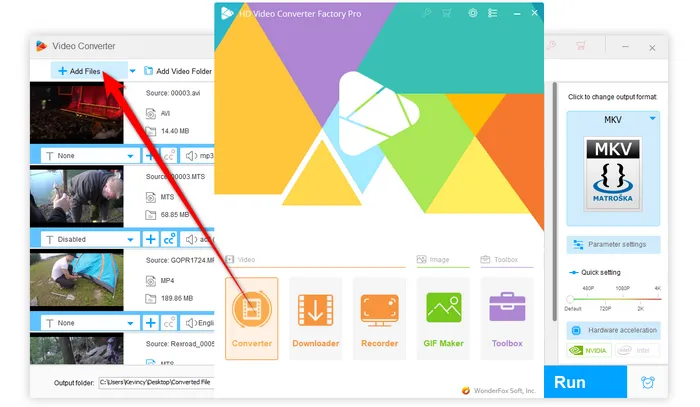
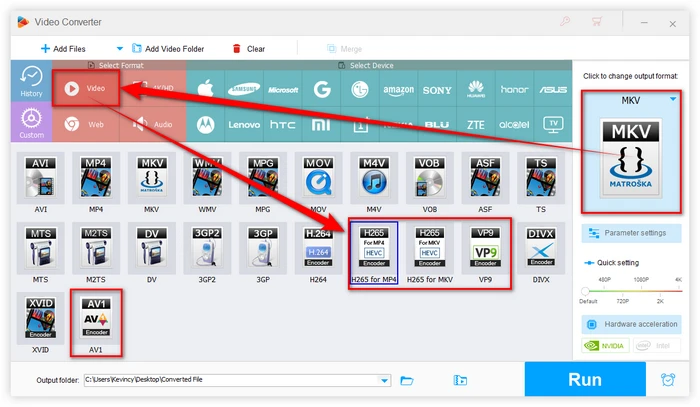
Now you’ll downscale the video. You can usually do it in either of these ways:
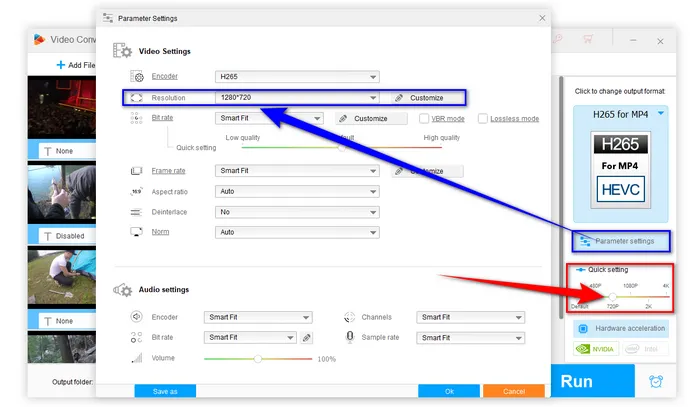
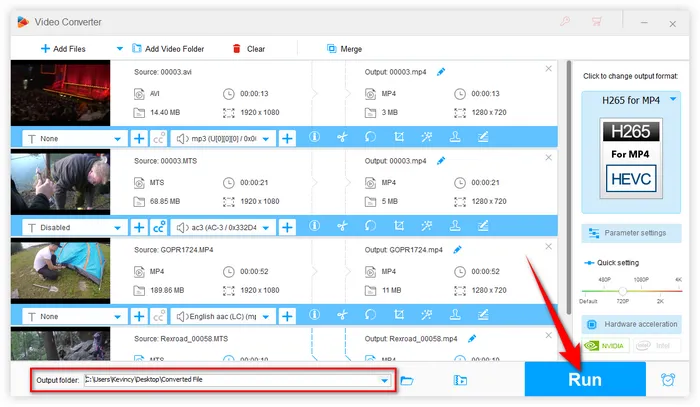
You can monitor the progress in the software interface. Once the conversion is complete, you'll find your 720p videos in the output folder you selected earlier.
💡 Hardware acceleration (Intel QSV and Nvidia NVENC) is available for H264 and H265/HEVC encoding. The latest version of graphics card driver is required.
 Download for Free
Download for Free
Download for Free
Most users convert 1080p to 720p and then feel the result looks “soft” or “muddy”. That usually happens because the output bitrate was set too low.
Here are safe settings that work for most 720p videos:
Resolution controls sharpness ceiling, but bitrate controls how “clean” the image stays.
A: No. Because 720p contains fewer pixels than 1080p. What you can do is avoid “extra loss” by keeping a reasonable bitrate and not compressing too hard.
A: It can, especially on older laptops that struggle decoding 1080p. But if your playback stutters because of codec decoding, simply downscaling might not fully fix it. In that case, converting to H.264 MP4 often helps the most because it’s widely hardware-accelerated.
A: Yes, but keep in mind that upscaling a video from a lower resolution to a higher one may not result in the same quality as a native 1080p video, but the software will do its best to enhance the video quality during the conversion process.
Converting your 1080p video collection to 720p is an easy way to save storage space while still being able to enjoy high definition footage. By following our step-by-step guide, you can use WonderFox HD Video Converter Factory Pro to quickly and easily downscale your 1080p videos to 720p in just a few clicks. The resulting 720p video files will play more smoothly, work on more devices, and take up significantly less space, all while still providing an excellent viewing experience for most casual high-definition content.
Amazing? Free downloadFree download and install this handy video processor on your PC for a rainy day. Meanwhile, it can also bring you more practical features and surprises!

Terms and Conditions | Privacy Policy | License Agreement | Copyright © 2009-2026 WonderFox Soft, Inc. All Rights Reserved